

Tenancy Activities
Monitoring user and system activity across your Tenancy.
Tenancy Activities
As a Tenancy Manager, you can monitor several categories of activity, including User, Hubs, Traffic, and Auditing.
Audit Users
| Activity | Step(s) |
|---|---|
| Count users in a tenancy | Reference the "results" count at the bottom of the page. |
| Count users in a Hub | Enter the Hub name in the search bar, then reference the "results" count at the bottom of the page. |
| Check which Hubs a user belongs to | Enter the user's name or email in the search bar, then reference the Hubs displayed in the "Hubs" column. |
| Check the last time a user logged in | Enter the user's name or email in the search bar, then reference the date displayed in the "Last login" column. |
| Note: login activity for SSO users can be found using your SSO administration tool(s). | |
| Reset 2FA for a user | Enter the user's name or email in the search bar, then press [•••] and select "Reset 2FA". A new 2FA code will be presented to the user the next time they log in. |
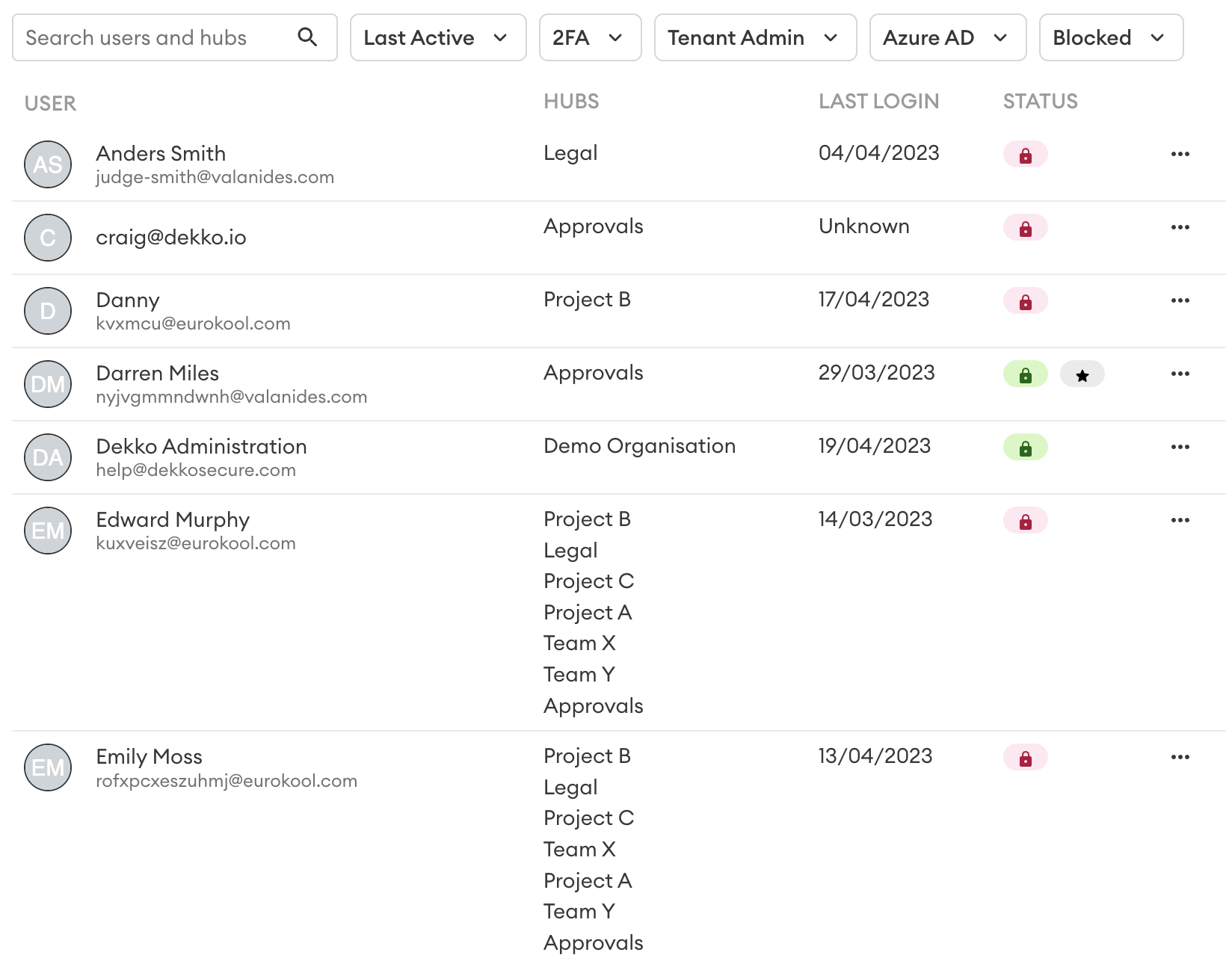
| Check a users tenancy admin status | Enter the user's name or email in the search bar, then check for the ★ symbol in the "Status" column. |
| Alternate: use the "Tenant admin" dropdown at the top of the page. | |
| Note: to add a new tenant admin please contact DekkoSecure support. | |
| Check which users have 2FA enabled/disabled | Set a preference in the "2FA" dropdown at the top of the page. |
| Remove a user from all tenancy Hubs | Enter the user's name or email in the search bar, then press [•••] and select "Delete user". The user will still be able to log in to DekkoSecure, but will no longer have access to any in-tenancy Hubs or files. |
| Contact DekkoSecure support for absolute account deletion. | |
| Reset a user's password | Enter the user's name or email in the search bar, then press [•••] and select "Reset password". |
| Note: password reset is not available for SSO users. | |
| Check which users authenticate using SSO | Set a preference in the "Azure AD" dropdown at the top of the page. |
| Add a user to a Hub / update a user’s Hub membership role | Press [•••] and select "Manage memberships”, then update the Hub membership role(s) as required. |
Typical user listing view:
Export the user list
The user list can be exported as a CSV file by pressing the Export Users button:
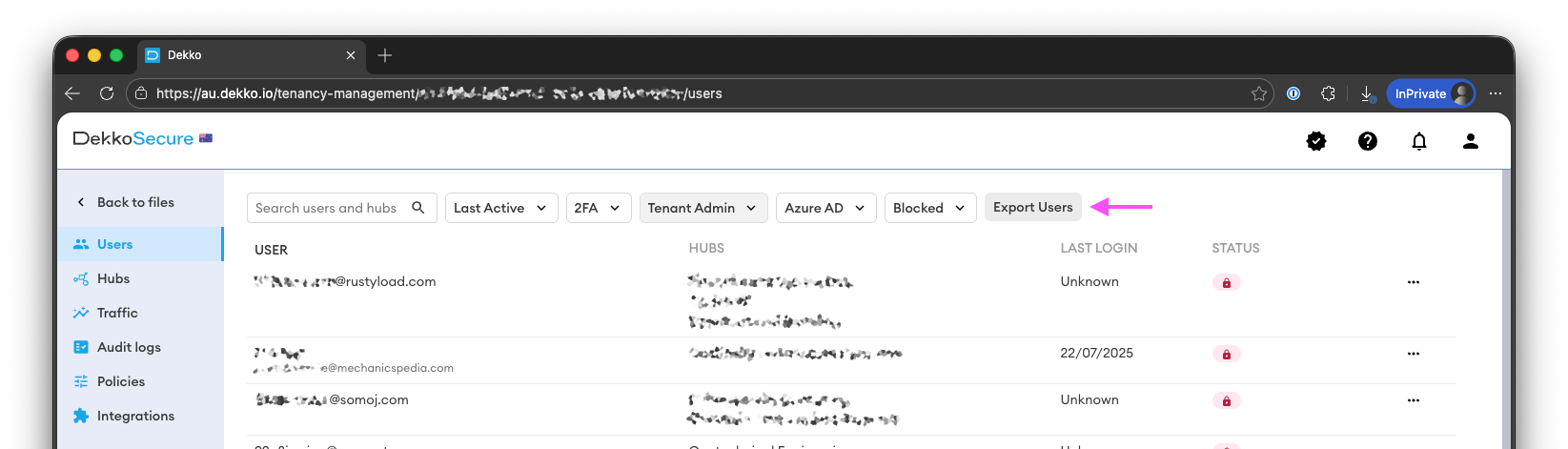
Note: the export will reflect your current filters. To export the full list, clear all filters.
Audit Hubs
| Activity | Step(s) |
|---|---|
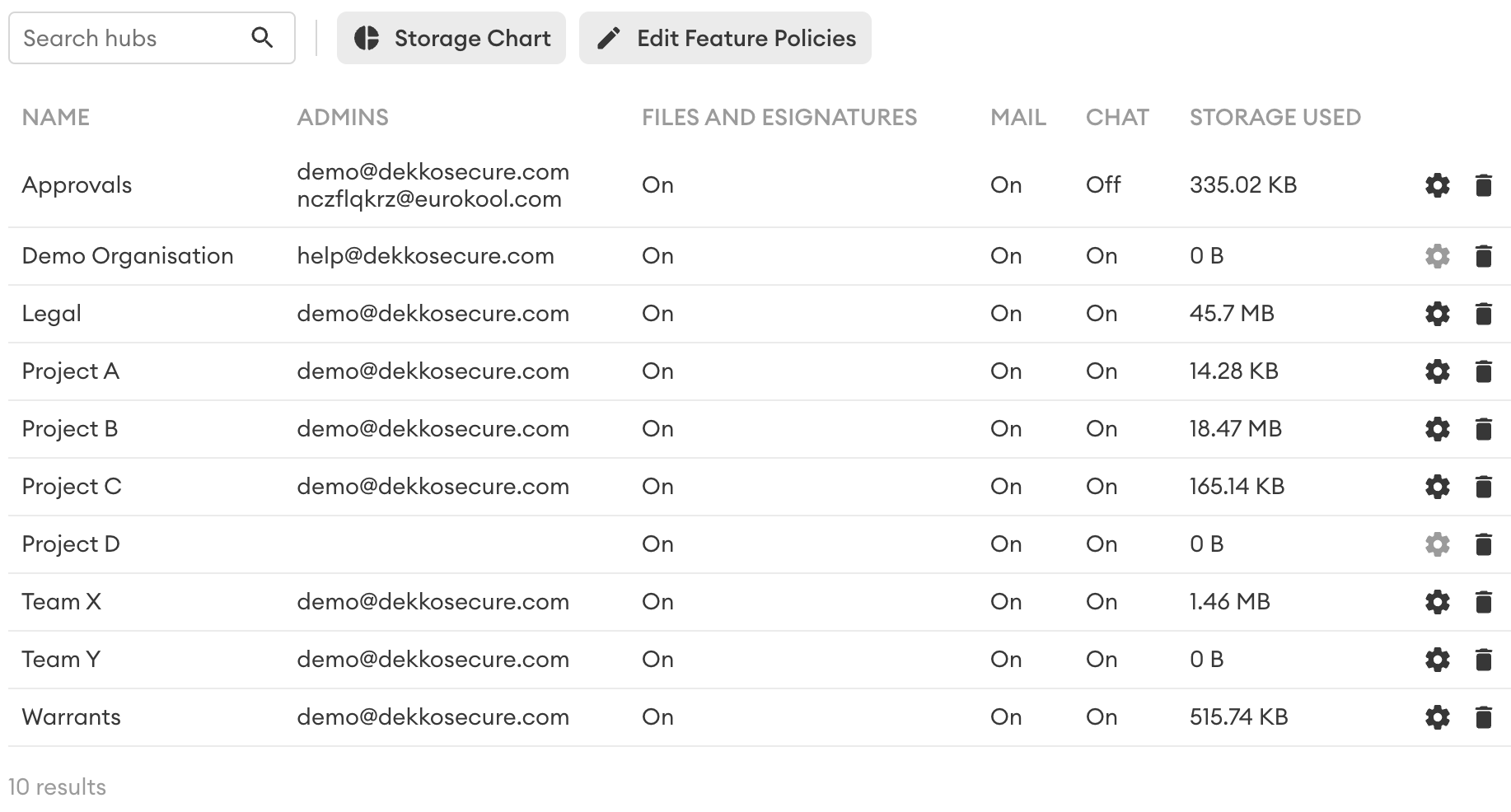
| Check storage used by a Hub | Check the amount listed in the "Storage used" column. |
| Tip: use the search bar to narrow down your results | |
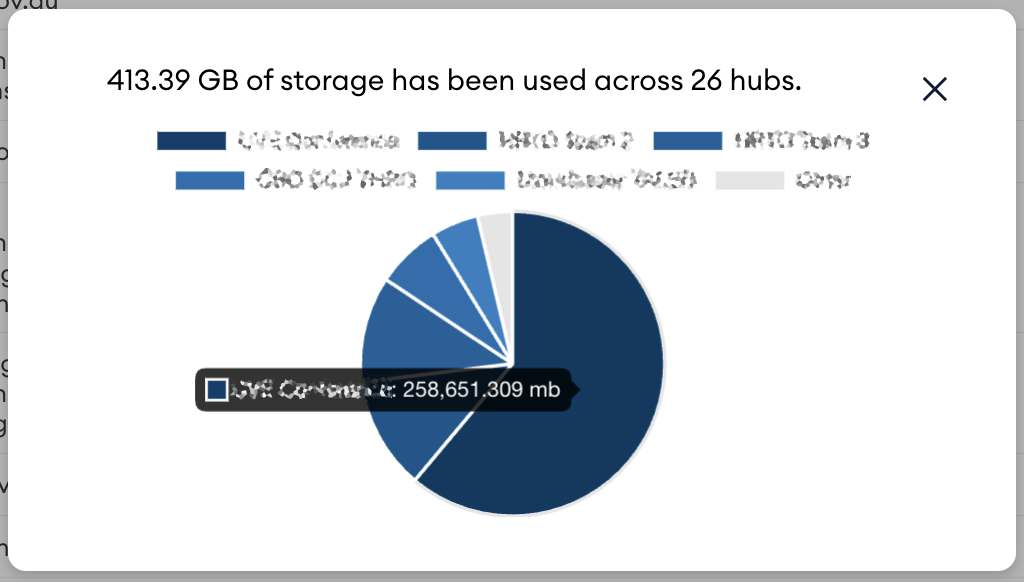
| Tip: press the "Storage chart" button at the top of the page to see a visual representation of storage user per-Hub. | |
| Count Hubs in a tenancy | Reference the "results" count at the bottom of the page. |
| Tip: use the search bear to narrow down your results. | |
| Check Hub admins | Enter the Hub's name in to the search bar and reference the user(s) listed in the "Admins" column. |
| Disable file sharing, mail or chat | Press the "Edit feature policies" button at the top of the page. |
| Check feature availability | Reference the "Files and eSignatures", "Mail" and "Chat" columns. |
| Change a Hub branding or user roles/visibility | Enter the Hub's name in to the search bar and then press the ✱ button to access Hub-specific settings. |
| Note: you must be a member of the Hub and set as an admin to use this feature. | |
| Delete a Hub | Enter the Hub's name in to the search bar and then press the delete button. |
| Warning: Hub deletion is permanent. All files contained within the Hub will be removed and cannot be recovered. |
Typical Hub listing:
Typical Hub storage view:
Export the Hub list
The Hub list can be exported as a CSV file by pressing the Export Hubs button:
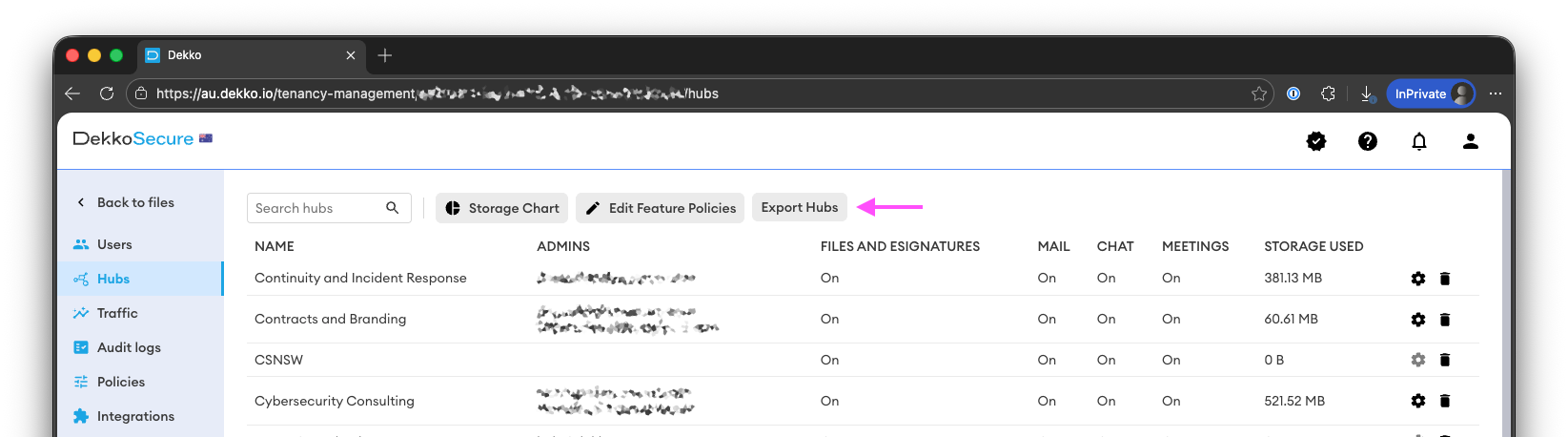
Note: the export will reflect your current filters. To export the full list, clear all filters.
Audit Traffic
| Activity | Step(s) |
|---|---|
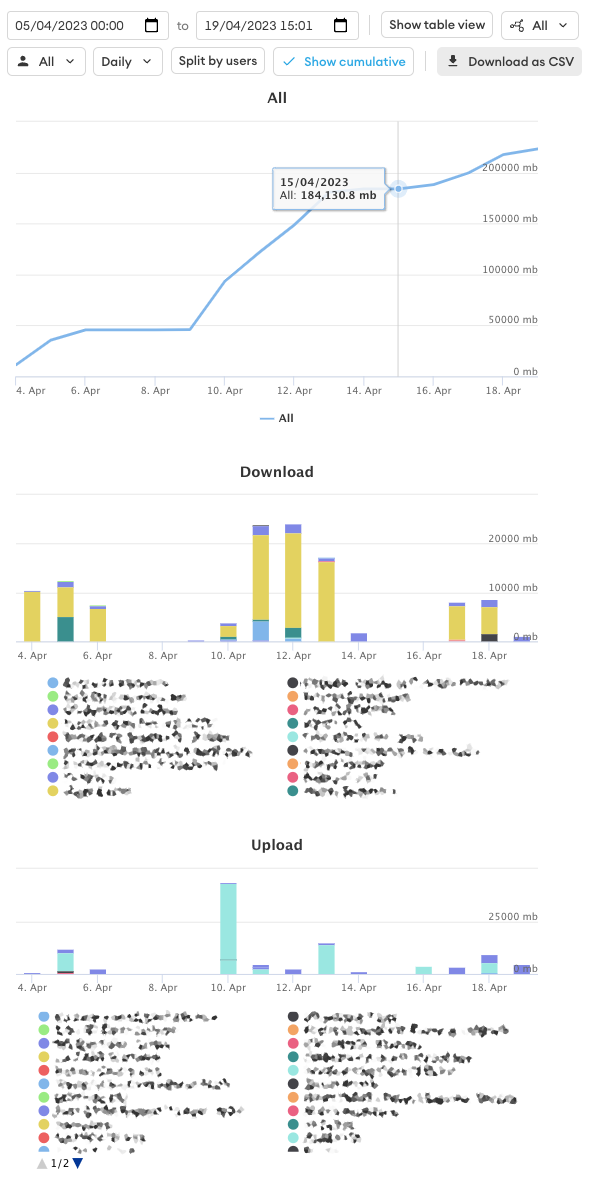
| See upload/download traffic for a specified period | Set a start and end date at the top of the page, then reference the displayed data. |
| See a Hub's upload/download traffic for a specified period | Set a start and end date at the top of the page, set the Hub in the Hub dropdown, then reference the displayed data. |
| See a User's upload/download traffic for a specified period | Set a start and end date at the top of the page, set the User in the User dropdown, then reference the displayed data (all users is default). |
| See cumulative data for a specified period | Set a start and end date at the top of the page, then select the "Show cummulative" button. |
| See traffic data in a table format | Set a start and end date at the top of the page, then select the "Show table view" button. |
| Adjust traffic display granularity (daily/monthly/yearly) | Set a start and end date at the top of the page, then select a preference in the granularity dropdown (daily is default). |
| Export traffic data | Set a start and end date at the top of the page, then press the "Download as CSV" button. |
Typical (2-week) traffic view:
Audit
| Activity | Step(s) |
|---|---|
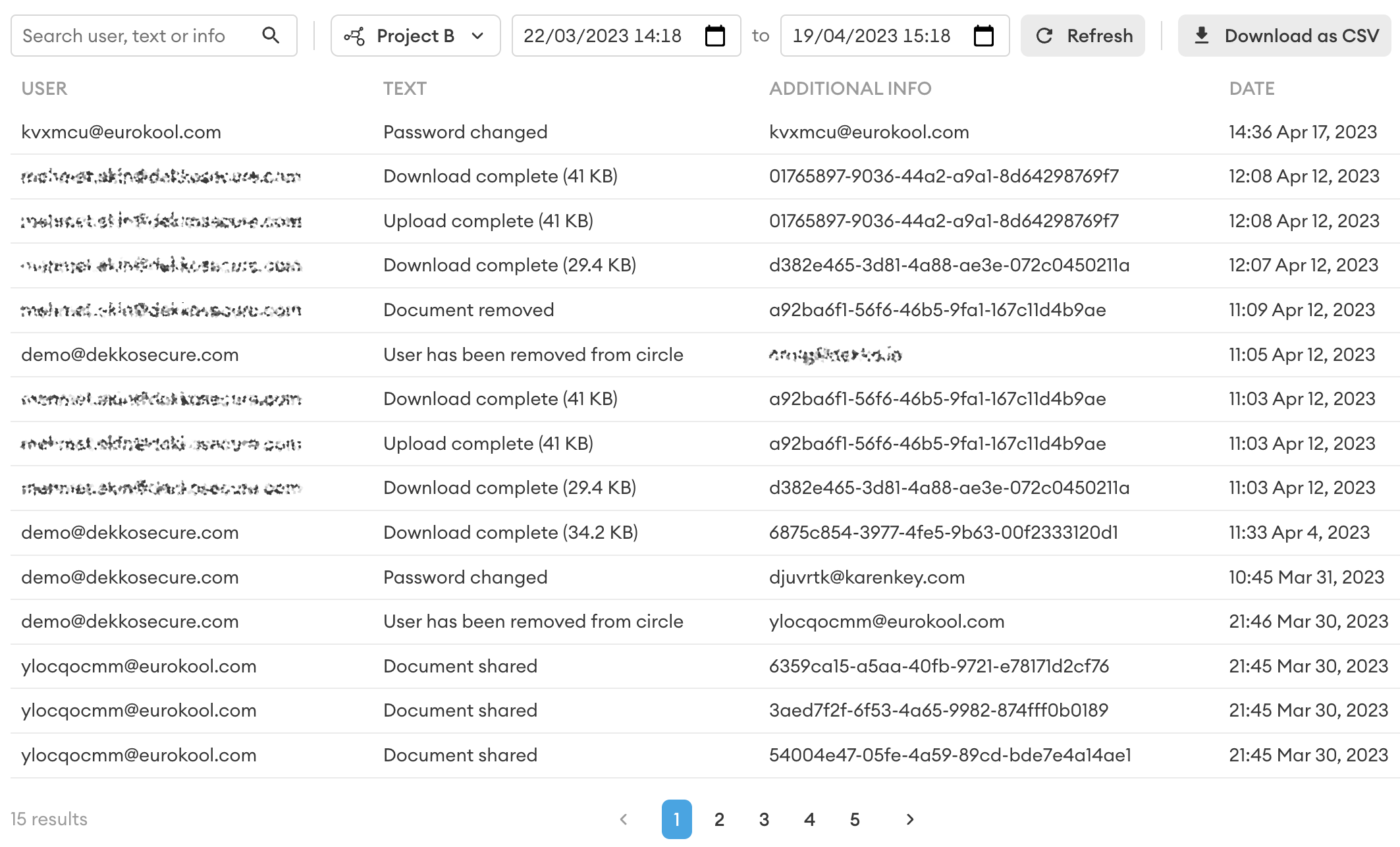
| Search for a user, event or entry | Set a start and end date at the top of the page, then use the search bar to narrow results. |
| View Hub-specific audit logs | Set a start and end date at the top of the page, set the Hub in the Hub dropdown (all Hubs is default), then reference the displayed data. |
| Export audit logs | Set a start and end date at the top of the page, then press the "Download as CSV" button. |
Typical audit view (Hub-specific, one-month filter):
Was this article helpful?
Didn't find what you need?Ask the AI assistant about this topic, or contact support.
Request support